How to Install Citra and Run Nintendo 3DS Games on It
Published
Citra is still one of the first names people search for when they want to run Nintendo 3DS games on Windows or Android. The setup is not hard, but it is easy to get stuck in the same few places: the wrong build, a game file that Citra cannot read, a CIA file opened the wrong way, or a black screen caused by encrypted content.
This guide keeps the process simple. You will download Citra, install it on Windows or Android, add your 3DS games, run the first game, and fix the problems that usually appear during setup.
One thing is worth knowing before starting: the original Citra project is no longer updated. In 2026, many users run archived Citra builds or newer Citra-based builds such as Lime3DS, PabloMK7’s fork, or Azahar. The basic setup is almost the same, but using a newer build can help with modern Windows and Android compatibility.
Download Citra First
Start by downloading the version made for your device. Use the Windows build for PC. Use the Android APK for phones and tablets.
You can get the emulator from our download page:
After downloading it, do not open the game file yet. Install or extract Citra first, then add the game from inside the emulator. That small order matters, especially when working with CIA files or a folder full of multiple 3DS games.
Installing Citra on Windows
On Windows, Citra usually comes in two forms: a portable ZIP file or a normal installer. The portable version is common. It does not really “install” like a normal program; you extract it and run it from the folder.
When the Download Is a ZIP File
- Find the downloaded Citra ZIP file.
- Right-click it and choose Extract All.
- Open the extracted folder.
- Look for the main Citra application file.
- Double-click it to launch the emulator.
Do not run Citra from inside the ZIP window. Extract it first. Running it directly from the archive can cause odd issues later, especially when Citra tries to create folders for saves, shaders, or installed CIA files.
When the Download Is an Installer
- Open the Citra installer.
- Follow the setup window.
- Keep the default install location unless you have a reason to change it.
- Finish the installation.
- Open Citra from the desktop shortcut or Start menu.
Once Citra opens, the empty game list is normal. Nothing is wrong. The emulator is waiting for you to point it to the folder where your 3DS games are stored.
Adding 3DS Games on Windows
The cleanest setup is to make one folder just for 3DS games. Something like 3DS Games on your drive is enough. Avoid burying the files inside random download folders, nested ZIP files, or folders with very long names.
- Open Citra.
- Click Add New Game Directory.
- Select the folder where your 3DS games are stored.
- Click Select Folder.
- Wait for Citra to scan the folder.
- Double-click the game when it appears in the list.
For normal game files, Citra commonly works with formats like .3ds, .cci, and .cxi. A .cia file is different. It usually needs to be installed through Citra instead of opened like a regular ROM file.
Opening One Game Without Adding a Folder
For testing one file, use the manual loading option. This is useful when you want to check whether a single game works before adding a whole folder to the library.
- Open Citra.
- Click File in the top menu.
- Choose Load File.
- Select the .3ds, .cci, or .cxi file.
- Click Open.
When the same file fails through Load File and also does not appear in the game list, stop rescanning the folder. The issue is probably the file itself, not the directory.
Installing CIA Files in Citra
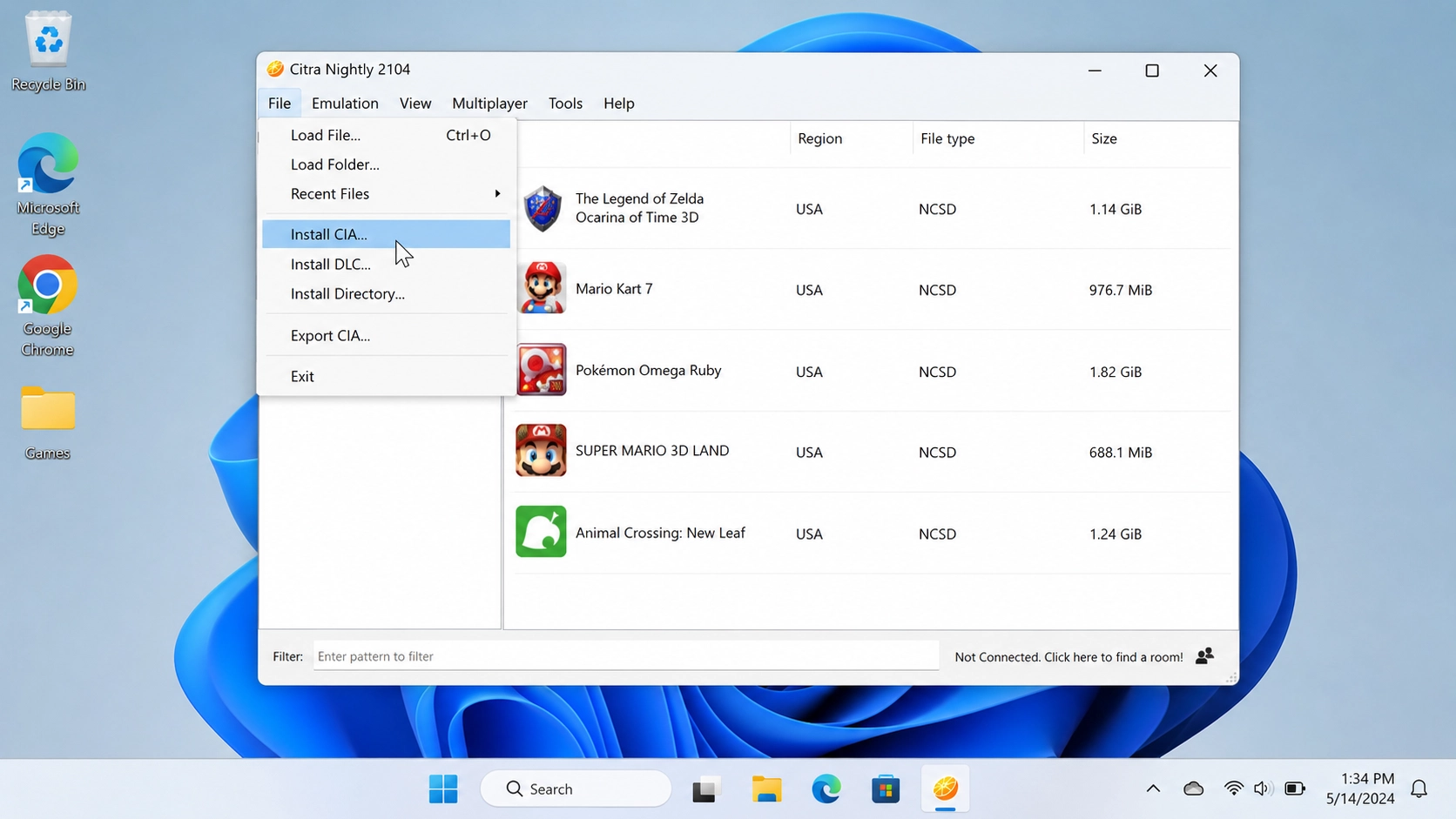
CIA files are one of the places where beginners often get confused. A CIA file may be a full game, an update, or DLC. Citra handles it through the install menu.
- Open Citra.
- Click File.
- Select Install CIA.
- Choose the CIA file.
- Wait until the installation finishes.
- Restart Citra when needed.
A full game CIA may appear in the game list after installation. An update or DLC will usually attach to the matching base game. When a DLC or update does nothing, check that the main game is already installed and that the region/version matches.
Installing Citra on Android
On Android, Citra is installed from an APK file. The steps are short, but file access can be annoying on newer Android versions. Android 13 and newer can be stricter with folders, so keeping your games in a simple folder like Download/3DS or Documents/3DS Games makes life easier.
- Open the folder where the Citra APK is saved.
- Tap the APK file.
- Allow installation from that browser or file manager when Android asks.
- Tap Install.
- Open Citra after installation.
Do not place your games inside Android system folders like Android/data or Android/obb. On newer Android versions, those folders are harder for apps and file managers to access. Put the games somewhere simple and visible.
Adding Games on Android
After opening Citra on Android, choose the folder that contains your 3DS games. The folder picker can look different depending on the phone brand, but the idea is the same.
- Open Citra.
- Give the app file access.
- Select your 3DS games folder.
- Let Citra scan it.
- Tap the game to launch it.
For Android, the first test should always be done with simple settings. Start at native resolution or 2x. After the game runs properly, increase the resolution. Doing it the other way around makes troubleshooting harder.
The File Problem Most Guides Skip
A lot of Citra black screen problems come from encrypted 3DS files. This is especially common when the game appears to load but never actually reaches the title screen.
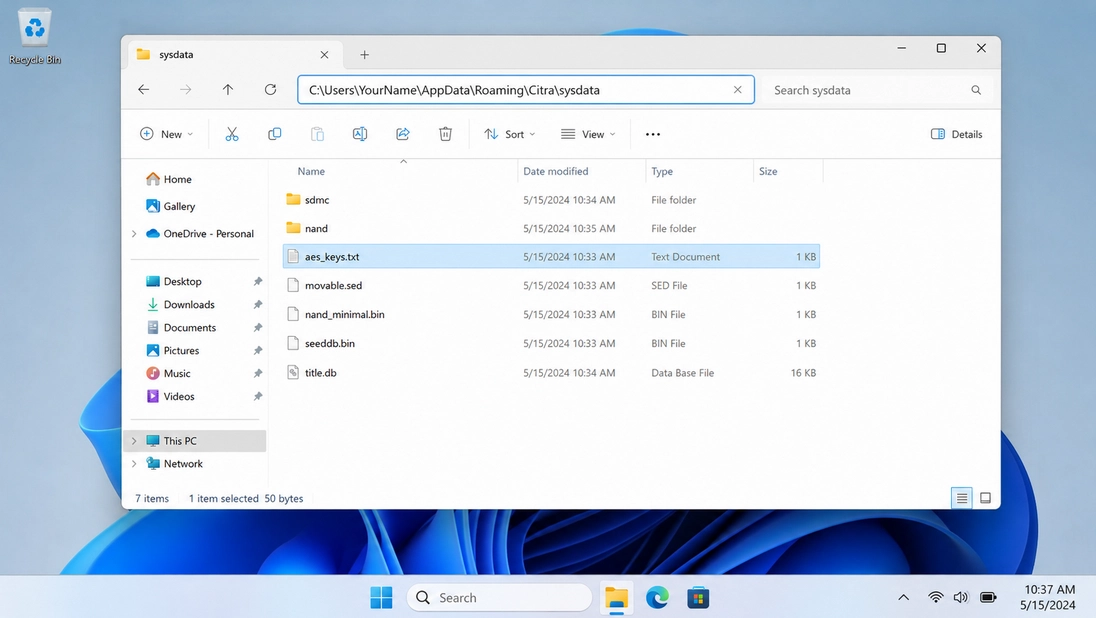
Citra can work with decrypted 3DS files more easily. Encrypted content may require an aes_keys.txt file placed in the Citra user folder, usually inside a sysdata directory. On Windows, that folder is commonly found around:
C:\Users\YourName\AppData\Roaming\Citra\sysdata
On Android, the folder depends on the Citra build or fork, but it is usually close to:
Internal Storage/Android/data/org.citra.citra_emu/files/sysdata/
Some newer Android versions make the Android/data folder harder to access from normal file managers. If you cannot open it directly, use the file manager that comes with your phone, connect the phone to a PC, or check whether your Citra-based build has a visible user folder inside internal storage.
Some Citra-based builds use a slightly different user folder, but the idea is the same: aes_keys.txt belongs in the emulator’s sysdata folder.
Also, do not confuse aes_keys.txt with prod.keys. Prod.keys are usually mentioned in Nintendo Switch emulator guides. For 3DS/Citra, the file people talk about is aes_keys.txt.
Best First Graphics Settings
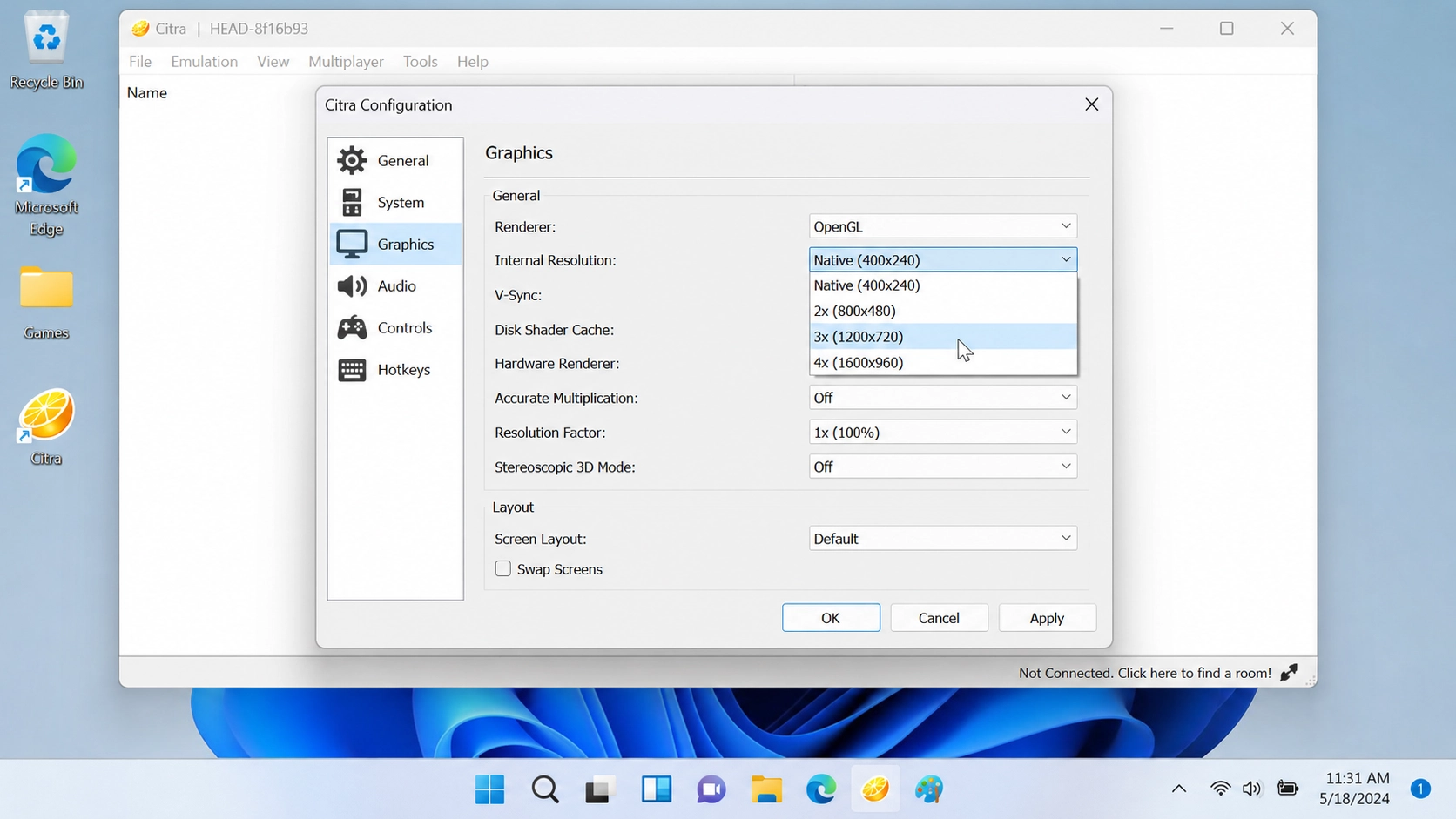
Before touching advanced settings, fix the one setting that matters most: internal resolution.
On Windows, open:
Emulation > Configure > Graphics
| Internal Resolution | Use It For | What to Expect |
|---|---|---|
| Native | Weak PCs and Android phones | Fastest option, original 3DS-like sharpness |
| 2x | Most average devices | Cleaner image without too much extra load |
| 3x | Good PCs | Nice image on a 1080p screen |
| 4x | Strong PCs | Sharper image, more GPU pressure |
When a game stutters, lower internal resolution first. This usually helps more than changing five smaller settings. Leave hardware renderer enabled unless you are testing a specific graphics bug.
Game Notes That Help During Testing
Not every 3DS game behaves the same in Citra. Use a few different games when testing the emulator, because one game can make your setup look worse than it really is.
| Game | Common Behavior in Citra | Good First Fix |
|---|---|---|
| Pokemon X / Pokemon Y | Usually playable, but some scenes may stutter on weaker devices | Use 2x resolution first, then increase slowly |
| Pokemon Sun | Heavier than it looks, especially on Android | Start at Native or 2x and close background apps |
| Mario Kart 7 | Feels much better with stable frame pacing | Use a controller and avoid high resolution on weak PCs |
| The Legend of Zelda: A Link Between Worlds | Looks much cleaner at higher resolution, but can expose GPU limits | Try 3x on PC, lower it if audio starts crackling |
| Animal Crossing: New Leaf | Usually easier to run than heavier 3D games | Good game for checking whether the setup works |
This does not mean these settings are perfect for every device. They are starting points. Citra performance depends on the game, build, CPU, GPU, Android version, and driver behavior.
Setting Up Controls
Keyboard works for testing, but a controller feels better in most 3DS games. On Windows, open:
Emulation > Configure > Controls
Click a button field, press the keyboard key or controller button you want, then move to the next one.
| 3DS Button | Simple Keyboard Mapping |
|---|---|
| Movement | WASD or Arrow Keys |
| A | Z |
| B | X |
| X | A |
| Y | S |
| Start | Enter |
| Select | Shift |
| L / R | Q / E |
Xbox controllers are usually the easiest on Windows. DualShock 4 and DualSense controllers can work too, but they may need Steam Input or DS4Windows depending on the system. For games that use motion controls, controller setup can take extra work.
Common Citra Problems and What Usually Causes Them
Most Citra issues look different on the surface, but they usually come from the same few places: the wrong file type, encrypted content, high graphics settings, Android storage limits, or a controller that was never mapped properly.
| Problem | Most Likely Cause | What to Do First |
|---|---|---|
| Black screen after launch | Encrypted file, bad dump, missing AES keys, or graphics issue | Check whether the file is encrypted, place aes_keys.txt in sysdata, then lower internal resolution |
| Game does not show in the list | Wrong folder, compressed archive, unsupported format, or CIA file added as a normal game | Extract the file, move it to a simple folder, then use Load File or Install CIA |
| CIA file fails to install | Damaged CIA, low storage, missing base game, or wrong update/DLC match | Restart Citra, check free space, install the base game first, then install update or DLC |
| Lag or low FPS | Internal resolution too high, weak CPU/GPU, background apps, or poor Android performance | Set resolution to Native or 2x, close background apps, and test a lighter game |
| Crackling or delayed audio | The game is not running at full speed | Fix performance first. Lower resolution before changing audio settings |
| Controller not working | Controller connected too late, not detected by the system, or buttons not mapped | Connect it before opening Citra, check Windows/Android detection, then map buttons manually |
| Android cannot find or access the game folder | Game files are stored inside restricted folders such as Android/data or Android/obb, which are harder to access on Android 13 and newer | Move games to a simple folder like Download/3DS first. If you still need access to Android/data, use a file manager with Android 13+ support, such as FV File Explorer with Shizuku, or connect the phone to a PC and manage the folder through USB/MTP |
Do not change ten settings at once. Fix the most likely cause first, test the same game again, then move to the next step. That makes Citra much easier to troubleshoot.