Atari 2600 ROMs (A26 & BIN)
The Atari 2600 has a kind of “pick up and play” energy that never really went away. No long tutorials, no huge installs just quick rounds, simple controls, and a lot of creative ideas packed into tiny cartridges. This category is built for retro fans who want an organized Atari 2600 ROM setup with two big packs at the top, then a separate list of individual game posts further down for more specific picks.
| File Name | Size | Format | Games |
|---|---|---|---|
| Atari 2600 .bin Collection | 19.68 MB | .bin | 2147 |
| Atari 2600 .a26 Collection | 1.99 MB | .a26 | 386 |
Right at the top you’ll find two main collections:
- One pack in .a26 format
- One pack in .bin format
Most visitors use the packs first because they cover a wide range in one download. The individual posts below are there for the moments when you only want one title, you’re hunting a particular variant, or you prefer bookmarking games one by one.
Latest Atari 2600 ROMs
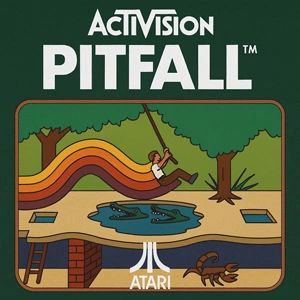

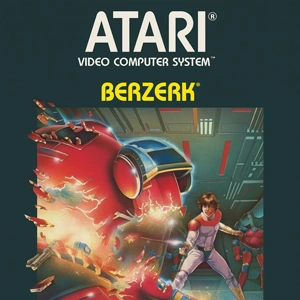

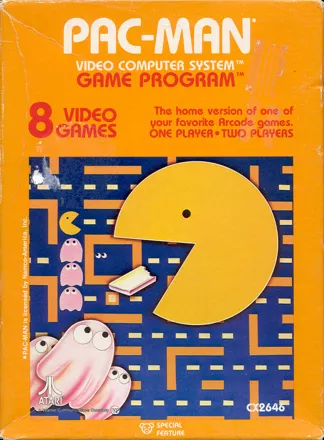
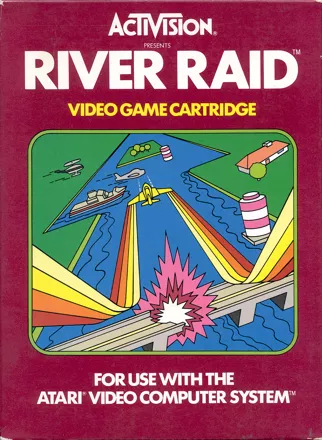
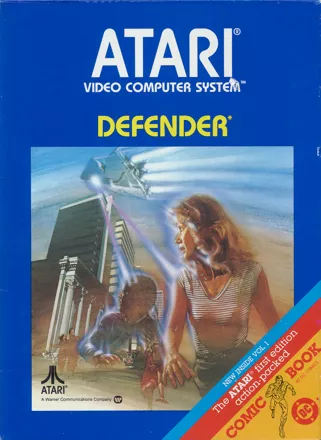
Quick install guide: Play .BIN / .A26 Files on an emulator
To run Atari 2600 games, you need to install the Stella emulator.
- Install Emulator: Use Stella (Windows / macOS / Linux).
- Run the emulator.
- Click Options at the top-right.
- Select User Interface.
- Open the Launcher tab.
- In Rom Path, choose the folder address where you extracted the ROMs, in .bin format.
- Click OK, then Close.
- The ROM list will be shown, and to run a game you can click its name.
Atari 2600 ROM Packs
A26 Pack (.a26)
.a26 is a common choice in modern Atari 2600 setups, especially when you use a frontend and care about keeping your list neat. In many environments it behaves like a “native” Atari 2600 file type, so scanning and browsing feels smooth. If your emulator already recognizes .a26 without extra work, this pack is usually a comfortable starting point.
BIN Pack (.bin)
.bin is the classic option that shows up in a lot of Atari workflows. It’s widely accepted across many emulators and multi-system apps, and it tends to travel well when you move files between different devices. If you follow guides that assume .bin naming and structure, or you switch between multiple emulators, the .bin pack is often the simplest path.
A quick way to choose
If you want a simple rule that works in real life, start with the format your current setup “likes” by default.
- Your emulator lists .a26 right away and everything scans nicely: go with the .a26 pack.
- Your emulator or device instructions talk about .bin files: the .bin pack will feel more straightforward.
- A game loads with odd behavior (resets, graphical glitches, strange input): try the other format before you touch deeper settings.
Emulators that most people stick with
Atari 2600 emulation is rarely demanding, so the bigger factor is cartridge handling and how well the emulator deals with different game types.
Stella is a well-known choice on PC and has a strong reputation for accurate Atari 2600 behavior.
RetroArch is also a good fit if you prefer one app for many systems just keep the Atari core setup simple, and avoid stacking unnecessary overrides that can complicate input and display.
Game variants in plain English
Some Atari 2600 titles exist in different revisions, and TV standards can matter (NTSC vs PAL). When something feels “off” (speed, colors, or sound timing), it’s not always your settings. A different variant of the same game can fix it immediately, which is why separate posts below can be useful for collectors and picky setups.
A folder layout that stays easy to manage
Frontends and scanners tend to behave better when your folders are simple and predictable.
- Keep .a26 and .bin in two separate folders so a frontend doesn’t show duplicates.
- Don’t bury ROMs under a long chain of folders. A shallow structure is enough.
Example:
Atari 2600 / A26
Atari 2600 / BIN
- Scan one folder at a time. After that, pick one format as your “main” list so browsing stays clean and consistent.
- If filenames include revision tags, keep them. Those little details can help later when you troubleshoot a stubborn title.
Advanced Atari 2600 Emulator FAQ
These are the “oh wow, that was exactly my problem” fixes people hit when running Atari 2600 ROMs on Stella / RetroArch.
Black screen / instant reset on launch (Stella)
Likely cause: wrong bankswitch auto-detect (rare, but real).
Fix (exact clicks): Press TAB → Game Properties → Cartridge → set Type manually → OK → Exit → press Ctrl+R to restart emulation.
Stella remembers this per ROM via the ROM’s MD5. If you patch/modify the ROM bytes, you may need to set it again.
“Works sometimes” or behaves randomly after power-on (especially homebrew)
Real hardware detail: depending on the bankswitch implementation, a cart can start in a “random” bank on power-up. Stella dev workflows may randomize the starting bank too.
Practical takeaway: if a ROM only boots when the emulator happens to start in the “right” bank, force the bankswitch type and (if available) adjust the starting bank / reboot until stable.
Forcing bankswitch WITHOUT menus (useful for frontends & stubborn ROMs)
Trick: Stella supports “special filename extensions” that force a bankswitch scheme (same idea used by Harmony/UnoCart).
Example: rename game.bin → game.F8 (or game.E0, game.FE, game.DPC, etc.). Use this only when auto-detect is wrong.
This is an override mechanism—don’t do it blindly for every ROM.
I changed Cartridge Type but nothing changed
Gotcha: some ports/frontends only apply bankswitch/TV-type changes on ROM load.
Fix: after changing per-game settings, fully reload the ROM (or restart emulation). If you’re on Stella desktop, Ctrl+R is the quick restart.
My ROM doesn’t show up in the launcher (but it’s valid)
Cause: some devices/ports only filter certain extensions in their file browser.
Fix: if .a26 files don’t appear, rename them to .bin (the ROM bytes are the same; this is just a browser filter issue on some builds).
.A26 vs .BIN: does one “run better”?
Reality: in Stella, .a26 and .bin are treated the same for loading. Use whichever your frontend scans best.
Practical tip: keep only one format in your “main” folder to avoid duplicates when a frontend scrapes your library.
Paddle games feel unusable (Kaboom!, Warlords, Super Breakout)
Common cause: wrong input device path (especially in RetroArch) + latency/sensitivity.
Key detail: the Stella core in RetroArch commonly routes paddles through an analog stick path. If your adapter exposes paddles as a mouse, it may feel wrong in the core.
Fix: try mapping paddles to an analog axis in RetroArch, or use standalone Stella (which can use mouse-as-paddle more naturally on some setups).
RetroArch: mouse-as-paddle is painfully slow even at max sensitivity
Real-world issue: some users report mouse speed stays too low even after increasing sensitivity settings.
Fix path: prefer an analog axis for paddle emulation (or a proper spinner/paddle device mapping), and avoid stacking random overrides per game until the base input feels correct.
Game “needs Reset to start” (or boots into the wrong mode)
2600 quirk: many titles rely on console switches (Reset/Select, Difficulty A/B, Color/BW) as part of gameplay.
Fix: in Stella you can trigger Reset/Select via keys, and you can also start with switches held (useful for picky titles).
CLI trick: Stella supports options like -holdreset / -holdselect for “held at boot” behavior.
“Weird” multi-part ROMs that don’t run unless merged
Example case: some multi-load games must be combined into one ROM image before loading.
Fix: concatenate the parts into a single .bin (Stella docs show exact cat/copy /b examples).
I zipped/7z’d ROMs and now I get a black screen / weird beeping
Reality: Stella supports .zip directly, but some setups choke on .7z workflows and can fail in ugly ways.
Fix: extract first or use .zip instead of .7z when your frontend/emulator chain is picky.